The Best Habit Tracker for iPad Pro: Maximizing Productivity with Widgets
By Aaron Hampton · March 25, 2026 · 9 min read
Most habit tracker reviews treat every device the same. Download the app, tap a checkbox, move on. But if you’ve invested in an iPad Pro, you already know: this isn’t a phone with a bigger screen. It’s a different kind of tool entirely — one that rewards deliberate setup.
When you build a proper iPad Pro workflow around habit tracking, something shifts. Your habits stop living inside an app you have to remember to open. They become part of the surface you work on every day. Visible. Calm. Just there.
This is a guide to making that happen with Just Habits — a minimalist, privacy-focused habit tracker built for people who want progress without the pressure.
Why the iPad Pro Is the Ultimate Habit Station
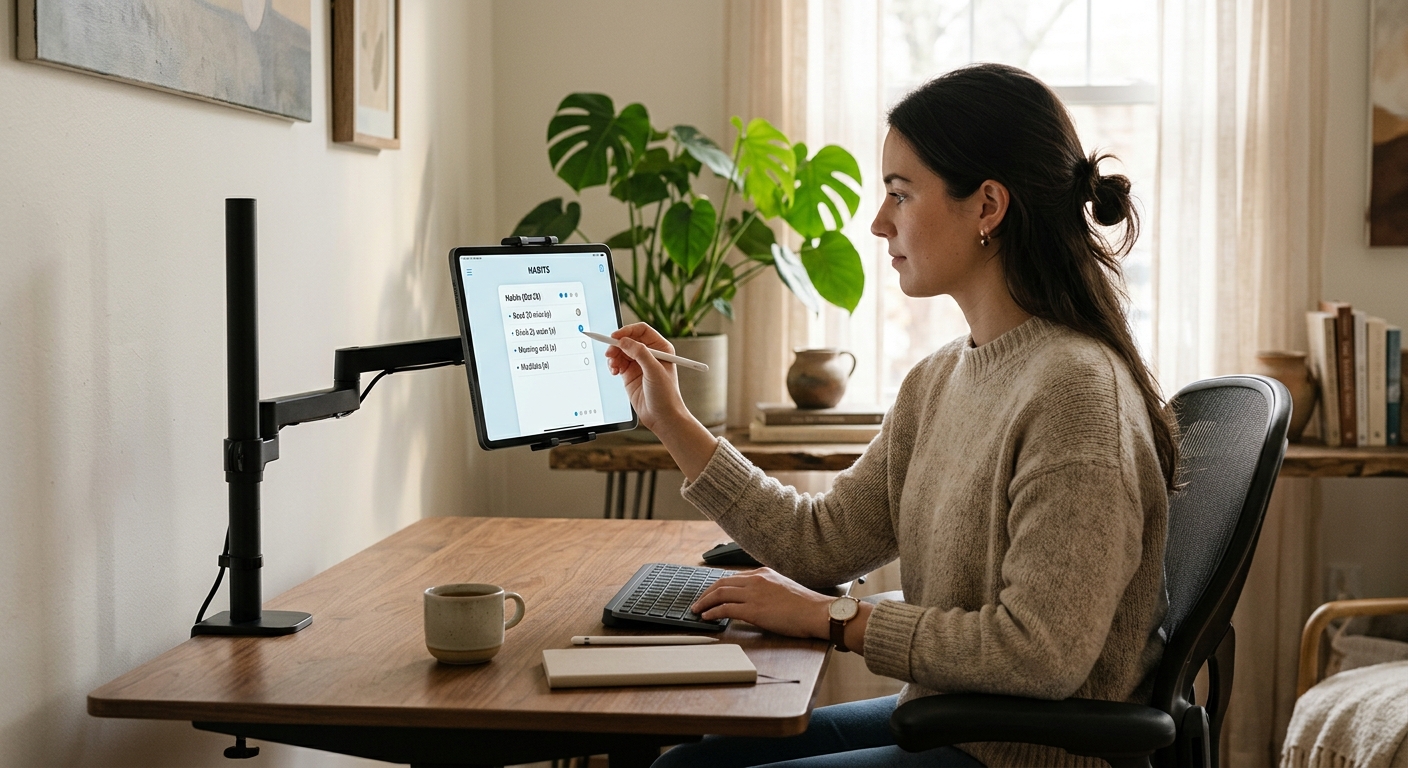
There’s a particular kind of productivity that happens when a device lives on your desk rather than in your pocket. Your iPhone goes everywhere — it’s reactive, context-switching, notification-saturated. Your iPad Pro, especially in a Magic Keyboard folio or on a stand, is different. It’s stationary. Intentional. You go to it.
That distinction matters enormously for habit tracking.
The biggest obstacle to building habits isn’t forgetting what to do — it’s the friction between intention and action. When your habit tracker is buried three app-swipes deep on a phone you left in another room, the gap between “I should check in” and actually doing it is wide enough for the whole routine to fall apart.
An iPad Pro set up as a desk station closes that gap. The screen is always visible. The information is always present. You don’t have to seek it out — it meets you where you already are.
This “always-on” desk setup is why iPad Pro users are, quietly, the best candidates for sustainable habit tracking. Not because they’re more disciplined. Because their environment does more of the work for them.
And unlike streak-obsessed apps that punish you with broken chains the moment life gets complicated, Just Habits is built around a simple truth: a missed day isn’t failure. It’s just a day. The goal is to return without shame — and a calm, persistent widget on your home screen makes returning feel easy, not dramatic.
Leveraging iPadOS Widgets for Visibility
The single highest-leverage thing you can do with Just Habits on an iPad Pro is putting the widget somewhere you already look.
This isn’t a minor quality-of-life improvement. It’s a behavioral design principle. Visibility is the invisible layer beneath every habit system that actually works. If you can see the habit, you can do the habit.
Setting Up the Just Habits Widget on iPadOS 17
iPadOS 17 expanded widget flexibility significantly, letting you place interactive widgets directly on the home screen — meaning you can tap to mark a habit complete without ever opening the app. That’s the frictionless interaction that makes the difference between a tracker you use and one you forget.
Here’s how to get it set up:
- Long-press your iPad Pro home screen to enter jiggle mode.
- Tap the + button in the top-left corner.
- Search for Just Habits in the widget gallery.
- Choose your preferred widget size — the small or medium widget are the available options; the medium widget works best on the iPad Pro’s display, giving you room to see multiple habits at a glance without crowding.
- Drag it to your preferred position. The top-left or top-center position tends to catch the eye most naturally on a landscape home screen.
- Tap Done.
From here, your habits are visible every time you wake the screen.
Choosing the Right Widget Size for iPad Pro
This is where iPad Pro’s larger canvas genuinely earns its keep. On an iPhone, you’re often choosing between visibility and screen real estate. On a 12.9" or 13" iPad Pro, that tradeoff mostly disappears.
The medium widget shows up to 5 habits for the day with completion states visible at a glance. For most people with a focused, minimal habit list, this is the right choice — you get a clear picture in one look without opening the app. If you track more than 5 habits, the medium widget will show your top habits, so you’ll want to open the app occasionally to review the rest.
The small widget works well if you prefer to dedicate more screen space to other tools (a calendar widget, a focus timer, or a notes app snippet) and just want a quick visual anchor for your most important habit.
A good rule of thumb: if your iPad Pro lives on a desk and you pass it frequently throughout the day, go medium. If you use it primarily as a lap device and the home screen is more of a launching pad, small is plenty.
The “Today View” as a Secondary Anchor
Beyond the home screen, iPadOS’s Today View (swipe right from the home screen) gives you an overlay panel for widgets. Adding Just Habits here creates a second visibility point — useful if your workflow naturally pulls you to check calendars or reminders there. Two low-effort glances per day at your habits, without a single app tap.
Split View and Stage Manager Workflows
The iPad Pro’s multitasking features are underused by most people. That’s understandable — they take a few minutes to configure, and most apps don’t reward the effort. But for habit tracking as part of a larger productivity workflow, Split View and Stage Manager unlock something genuinely useful: co-presence.
The idea is simple. Habits don’t exist in isolation. They connect to your planning, your reflection, your goals. When your habit tracker and your thinking tool are on screen at the same time, that connection becomes literal.
Split View: Habit Tracking + Journaling
The most natural pairing for Just Habits is a journaling or daily planning app. Open Just Habits on one side of the screen, your journal on the other, and your morning check-in becomes a single, unified ritual.
Practical setup in iPadOS 17:
- Open Just Habits from the home screen.
- Swipe up slightly from the bottom to bring up the Dock.
- Long-press your journaling app from the Dock and drag it to the left or right edge of the screen until the Split View indicator appears.
- Release to create a 50/50 split — or drag the center divider to give one app more space.
On a 12.9" iPad Pro, a 50/50 Split View gives each app roughly the width of an iPhone Plus. Both remain fully usable. You can read your habit list on the left and write a brief reflection on the right, or review yesterday’s note while marking today’s habits complete.
This pairing works especially well with apps like Day One, Craft, or a plain-text editor like iA Writer — all of which share Just Habits’ preference for simplicity over complexity.
Stage Manager: Building a Habit Review Workspace
If you’re on an iPad Pro with iPadOS 16 or later, Stage Manager lets you move beyond simple two-app splits into a more flexible, desktop-like window arrangement.
For a weekly habit review workflow, consider this window arrangement:
- Just Habits in a mid-sized centered window — your anchor.
- A calendar app (Fantastical, Apple Calendar) in a smaller window to the right — for context on what your week actually looked like.
- A notes or planning app in a window below — for capturing next week’s intentions.
This isn’t complexity for its own sake. The point is that habit review becomes a place you go, not a task you squeeze in. When the workspace is already arranged, the activation energy drops to near zero.
Stage Manager also remembers window arrangements, so once you’ve set this up, returning to it is a single tap on the app group in the left sidebar.
A Word on Not Overcomplicating It
It’s worth saying clearly: you don’t need any of this to use Just Habits well. The widget alone is enough for most people. Split View and Stage Manager are for those who already live in a multitasking workflow and want their habit practice to fit naturally into it — not an invitation to build an elaborate system that becomes its own burden.
The best habit tracker for iPad Pro isn’t the one with the most features. It’s the one you actually look at.
The Just Habits iPad Pro workflow distilled: three steps, zero friction.
Making It Your Own — Without the Pressure
One last thing, and it matters more than any widget configuration.
The reason most habit trackers fail isn’t technical. It’s psychological. They’re built around streaks, leaderboards, and loss aversion — mechanisms borrowed from games, designed to keep you engaged rather than help you grow. Miss a day, the streak breaks, the shame creeps in, and gradually the app gets deleted.
Just Habits is built differently. There are no streaks to protect. No badges to chase. No notifications telling you that you’re falling behind. What you get instead is a quiet, honest record of your days — one that meets you where you are, not where an algorithm wants you to be.
On an iPad Pro, that philosophy takes on a physical quality. The widget sits in the corner of your screen without demanding anything. On a good morning, you mark everything. On a hard week, you mark what you can. The app doesn’t treat those differently, and neither should you.
That’s not lowering the bar. That’s understanding what sustainable progress actually looks like.
Getting Started
If you’re an iPad Pro user ready to build a calmer, more intentional habit practice:
- Download Just Habits from the App Store — one purchase, no subscription, no data sent anywhere.
- Add the medium widget to your home screen or swipe into the Today View to find it there.
- Start with two or three habits. Not ten. The simplicity is the point.
- If you use Stage Manager or Split View, pair Just Habits with your journal or planner for a unified morning ritual.
The iPad Pro is capable of extraordinary things. One of the most extraordinary is this: making it slightly easier, every single day, to become who you’re trying to be.
$4.99 one-time · No subscription · iPhone & iPad